Alongside Obisidian and ChatGPT, Espanso has been the biggest improvement to my efficiency in the office. Let’s take a look at what Espanso can do, and how to set up this free open-source software.
What Is Espanso?
Espanso is a cross-platform text expander designed to eliminate repetitive typing. By defining shortcuts, users can trigger prewritten responses, email templates, signatures, or even complex code snippets. Unlike some built-in text expansion tools or browser plug-ins, Espanso works system-wide, allowing users to apply it across different applications without restrictions.
Where It’s Useful in an Office Setting
1. Automating Repetitive Text
Typing the same email responses multiple times a day is inefficient. Espanso can turn a short trigger like :reply into a full response:
“Thank you for reaching out. I will review your request and get back to you shortly.”
In customer support roles, agents can use :faqshipping to instantly insert a standard response about delivery times, saving time and ensuring consistency.
2. Reducing Errors
Repetitive typing increases the likelihood of typos and formatting inconsistencies. Espanso ensures that predefined text is always inserted exactly as intended, making it useful for legal disclaimers, standard operating procedures, and customer service interactions.
For example, HR departments handling employment contracts can use a shortcut like :confidentiality to insert a standard confidentiality clause without risk of variation.
3. System-Wide Functionality
Unlike text expansion tools tied to specific applications, Espanso works across all software, from web browsers and email clients to word processors and coding environments.
A finance team preparing reports in Excel might use Espanso to automate common phrases, such as :qtrsummary expanding to “Quarterly Financial Summary: Q1 2024.”
4. Customisation and Integration
Espanso supports advanced functionality beyond simple text replacement. It can integrate with shell commands, use clipboard content in expansions, and even support form templates with dynamic placeholders like {name}.
A project manager could use :meetingnote to automatically insert a meeting template:
Meeting Notes - {date}
Attendees: {attendees}
Agenda:
1.
2.
3.
Action Items:
-
-
Getting Started
- Download and Install
- Visit https://espanso.org to download the appropriate version for your operating system.
- Set Up a Shortcut
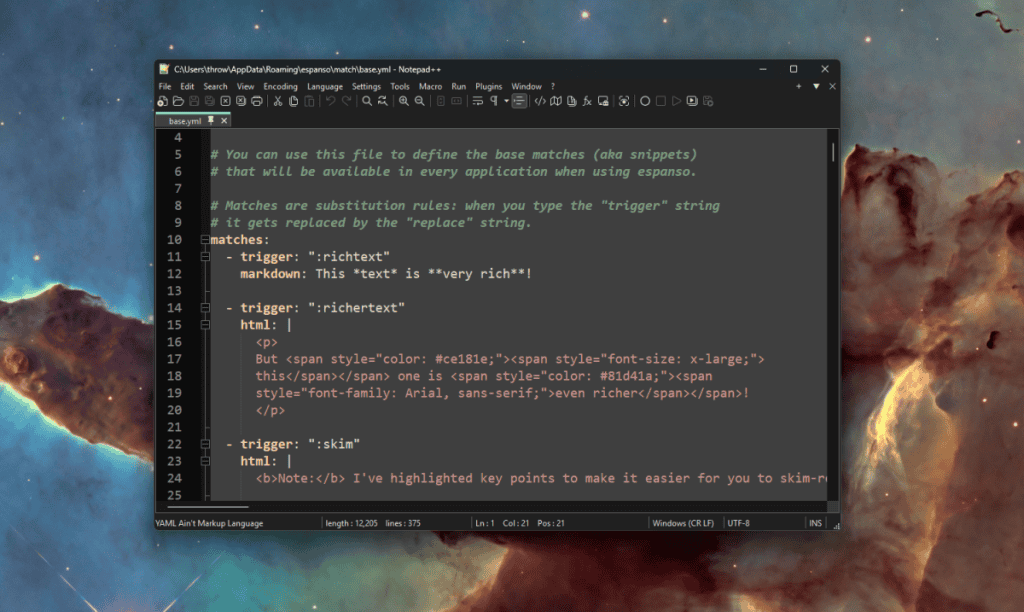
- Open Espanso’s configuration file and add an entry:
matches: - trigger: ":email" replace: "hello@example.com"
- Open Espanso’s configuration file and add an entry:
- Restart Espanso to activate the changes.
Steps to Sync with OneDrive or Google Drive:
- Move
base.ymlto a Cloud Folder- Locate your
base.ymlfile. On Windows, it is usually in:C:\Users\YourUsername\.config\espanso\match\base.yml - Move this file to a synced cloud folder, such as your OneDrive or Google Drive directory.
- Locate your
- Create a Symbolic Link
- Replace the original file with a symbolic link to the cloud-stored version.
- On Windows (using OneDrive):
mklink C:\Users\YourUsername\.config\espanso\match\base.yml C:\Users\YourUsername\OneDrive\base.yml - On macOS/Linux (using Google Drive):
ln -s ~/Google Drive/base.yml ~/.config/espanso/match/base.yml
- Restart Espanso to apply the changes.
Now, any updates to base.yml on one computer will sync to others using the same cloud account, keeping your text expansions consistent across all devices.
Additional Features
- Form Templates – Populate templates with user-defined variables.
- Shell Commands – Execute system commands via text triggers.
- Clipboard Integration – Paste dynamic content based on what’s copied.
Espanso is a practical solution for professionals looking to streamline their workflow. With its system-wide integration and flexible features, it’s an effective way to reduce repetitive typing and improve efficiency.